In today’s fast-paced digital world, efficiency is everything. Whether you’re an avid pinner or are brand new and trying to build a presence on the platform, knowing how to create Pinterest pins fast and efficiently will save you time, money, and stress.
And not just any pins, but beautiful, on-brand Pinterest pins that evoke emotion in the pinner!
So, if you’re looking to streamline your Pinterest strategy, let’s dive into how to create Pinterest pins fast in minutes using ChatGPT, Canva, and Tailwind, all while maintaining stunning visuals and engaging content.
Prefer to watch? Scroll down for a mini video tutorial ⬇️
Disclaimer: This post contains links to products I believe to be useful to the reader, from which I may earn a small commission, at no extra cost to the reader.

The Secret to Creating Pinterest Pins in 7 Minutes
Imagine creating 50 stunning Pinterest pins in just 7 minutes – sounds too good to be true, right?
Not if you’re armed with the right tools. This method combines the creativity of Canva, the power of AI with ChatGPT, and the time-saving capabilities of Tailwind. Here’s how you can do it too.
Recommended: How I Schedule 500 Pins in One Hour
How to Create Pinterest Pins Fast with Canva, ChatGPT and Tailwind
Creating Pinterest pins doesn’t have to be a long, tedious process. Here’s the step-by-step guide to mastering the super speedy creation of 50 quote-style Pinterest pins:
1. Generate Content with ChatGPT
Start by heading over to ChatGPT. Whatever industry or niche you’re in, whether you’re a life coach, blogger, or entrepreneur, you need content that resonates with your niche audience. Whether you’re looking to create motivational quotes, affirmations, or helpful tips, ChatGPT can generate 50, 100, even 150 positive statements on your chosen topic in seconds.
For example, if you’re a life coach focusing on spiritual careers, your ChatGPT prompt could be:
“I’m a life coach helping people find spiritual careers. Please give me 50 positive affirmations on this topic.”
This saves you the mental energy of brainstorming and ensures you always have fresh, engaging content for your audience. In just a few clicks, ChatGPT provides you with 50 ready-to-go statements.

2. Design Pins Using Canva Templates
Once you’ve got your content, it’s time to head to Canva. Canva makes designing Pinterest pins a breeze, even if you’re not a design expert. Here’s how to create pins on Canva quickly:
- To create Pinterest pins fast, first search for a Pinterest Pin template or an Instagram Story quote template that fits your brand style.
- Once you’ve found the right template, make small edits to ensure it matches your brand colours and fonts.
- Copy the content from ChatGPT and paste it into the Canva design.
- Next, use Canva’s “Bulk Create” feature (you can find it in the apps section) to upload all the content directly into your template. You’ll need to add the list of positive statements from ChatGPT. You can do this in two ways:
- Copy and paste text directly into Canva by clicking on “Enter Data Manually”.
- Upload a CSV file if you’ve saved your text in a spreadsheet. Each row in the CSV should contain one piece of text for your pins.
- Highlight the placeholder text in your design that you want to replace with your bulk data.
- Right-click on the text box and select “Connect data” and Canva will prompt you to connect the corresponding column of data from your list or CSV file.
- After you’ve connected your data, click on “Continue”. Canva will automatically generate multiple designs!
In just moments, your designs will be automatically filled with the engaging text generated by ChatGPT, giving you 50 stunning, on-brand Pinterest pins ready to post. Canva’s user-friendly interface also makes it easy to quickly tweak fonts, colours, or images, allowing you to make adjustments effortlessly without wasting time.
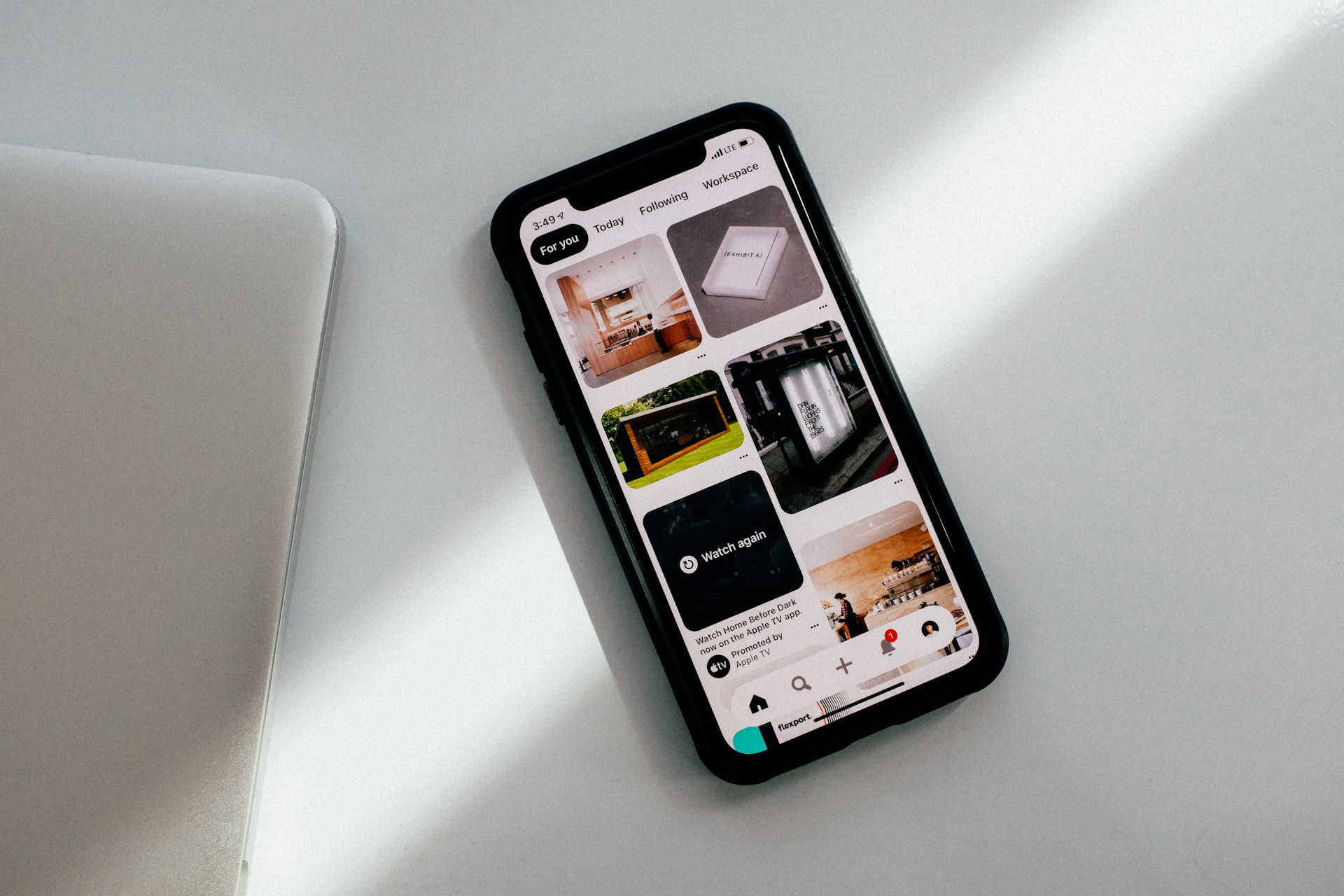
3. Bulk Schedule Pins with Tailwind
Now that you know how to create pinterest pins fast, and you’ve got your pins ready and downloading them, scheduling them is the next step. This is where Tailwind comes in. Instead of manually uploading your pins one by one, you can bulk schedule them across multiple boards, turning 50 pins into 150-200 pins!
Simply head to Tailwind Scheduler and use its bulk upload feature. By uploading 10–20 pins at a time, you can save even more time, especially if you’re promoting your content on several group boards. Scheduling your pins in bulk ensures that you’re always visible on Pinterest without the need for daily manual uploads.
Tailwind allows you to reach a larger audience by repurposing your pins on different boards. Those 50 pins can quickly multiply into 200 when shared across 3–4 boards, maximising your reach.
Check out Tailwind Scheduler here to simplify your Pinterest strategy today and test out their Forever Free plan!
Tips for Creating Pinterest Pins That Stand Out
- Customise templates: While Canva’s templates are a great start, make sure to tweak them so they reflect your unique brand identity.
- Keep your fonts bold and readable: Remember, most people will see your pins on mobile devices, so make sure your text stands out.
- Use high-quality images and colours: Eye-catching visuals grab attention, so ensure your pins look professional and appealing.
How Can I Avoid Pinterest Penalising Repeated Backgrounds on My Pins?
It’s true that Pinterest’s algorithm prefers variety, and using the same backgrounds repeatedly may impact your pin’s visibility. To avoid this, it’s a good idea to spread out your pins over time.
Tools like Tailwind allow you to schedule pins with intervals, ensuring you’re not posting similar designs too frequently. For example, I schedule 17 pins per day and make sure each one is posted at least five days apart from its next appearance on a different board (meaning I’d pin 85 pins before posting a similar style). This way, your content remains fresh and engaging, which will help boost its performance on Pinterest.
Maximise Your Pinterest Success with the ‘Get Paid on Pinterest Bundle’
If you’re serious about growing your Pinterest presence and making money from your pins, you’ll want to check out my Get Paid on Pinterest Bundle. This exclusive package includes 35 customisable Pinterest pin Canva templates and my list of Pinterest money-making hacks you won’t find anywhere else on the internet. It’s the perfect resource for those looking to take their Pinterest game to the next level.

Creating Pinterest Pins Quickly: Lets Review
Knowing how to create Pinterest pins fast is going to transform how you use Pinterest! By combining ChatGPT’s content generation capabilities with Canva’s design tools and Tailwind’s scheduling features, you can create and upload Pinterest pins quickly without sacrificing quality.
This streamlined process of how to create pinterest pins fast, allows you to:
- Save tonnes of time by automating a chunk of your content creation and pin design.
- Maintain a slight visual consistency, therefore becoming recognisable on Pinterest.
- Maximise reach by bulk scheduling and repurposing your pins across multiple boards.
With just a few simple tools, you can stay ahead of the game and continue to grow your Pinterest presence with minimal effort.
Ready to Supercharge Your Visibility?
Success online involves much more than just learning how to create Pinterest pins fast, and I’m here to teach you everything you need to know!
To further boost your online success, be sure to join my free Telegram group, ‘Biz Beyond the Gram’, where I share insider tips and strategies for growing your business without relying on Instagram so that you can start growing your business smarter today!
x Hannah x
Work With Me
- Check out my full list of Pinterest Services
- Join my monthly mentorship program, The Digital Priestess Collective
- Check out my 5-part program Blogger Bootcamp
Tags: how to create Pinterest pins fast, how to create pins quickly, create beautiful pinterest pins, to design, how to batch create pinterest pins